How to get a clean copy of your submissions data out of Airtable
A step-by-step export guide for development and sales teams running submissions on an Airtable base: what to pull, what CSV export drops, and how it lands in Greenlit.
On August 4, 2026, Bending Spoons announced a definitive agreement to acquire Airtable in an all-cash deal valuing the company at roughly $1.285 billion. The deal is expected to close before the end of the year, pending regulatory review. Whatever that means for Airtable's roadmap and pricing, a lot of development and sales teams keep their entire submissions pipeline in an Airtable base: scripts, decks, coverage notes, rights status, all of it. It's a reasonable time to make sure you have a clean, complete copy of that data sitting outside the tool, whatever you decide to do with it next.
This is the walkthrough for getting it out cleanly. If you're weighing whether to move the workflow itself, that's a separate question. See Greenlit vs Airtable.
Start with an inventory, not an export
Before you touch the export button, list what's actually in the base: how many tables, how many views per table, which fields hold attachments, which fields are linked records pointing at another table, and whether any automations run on the data (auto-assigning a reader, sending a notification, updating a status). CSV export handles some of this cleanly and drops the rest silently. You want to know which is which before you start, not after.
The thing that actually bites people
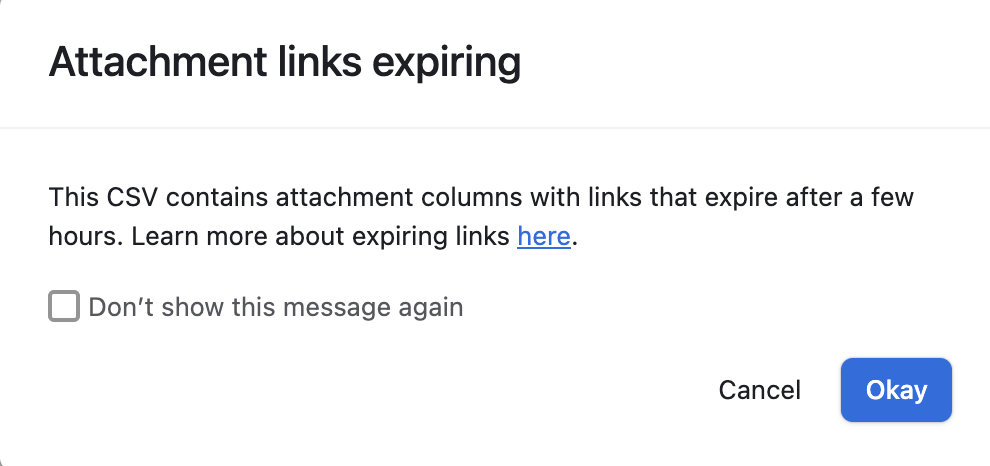
Airtable's CSV export doesn't include your files. An attachment field exports as a filename and a download URL, and that URL is temporary. Airtable started expiring attachment links a few hours after generation back in November 2022, as a security measure, and the behavior is still in place. Export a submissions base with scripts, decks, and sizzle reels attached, wait a day, and every one of those links is dead. The CSV file itself looks complete. It isn't.
This link expires in a few hours
The CSV export gives you a filename and a temporary URL, not the file. Download the attachment itself before the link goes dead. The export won't warn you when it does.
The five steps
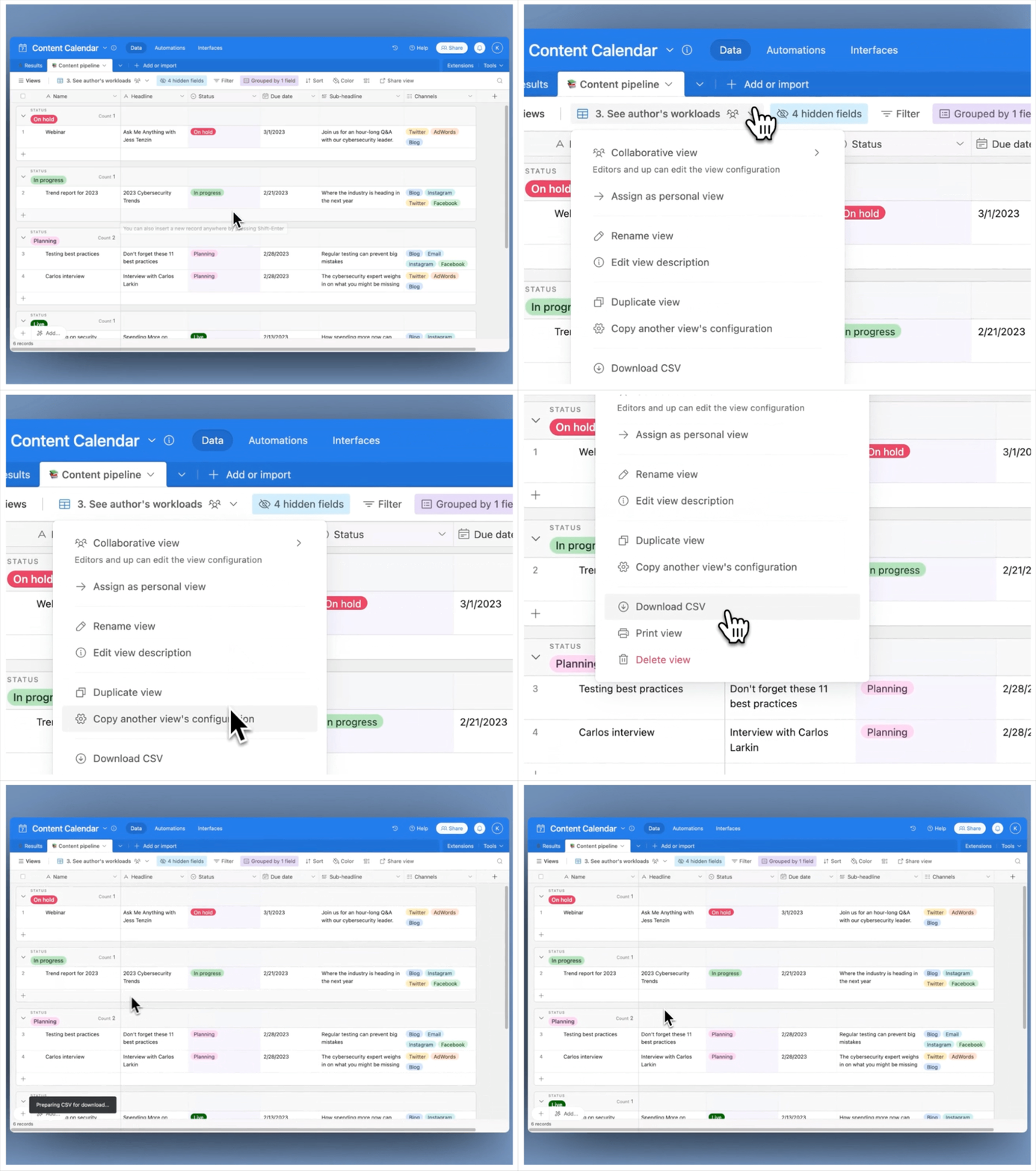
Export each view to CSV
Pull the attachments down before the links die
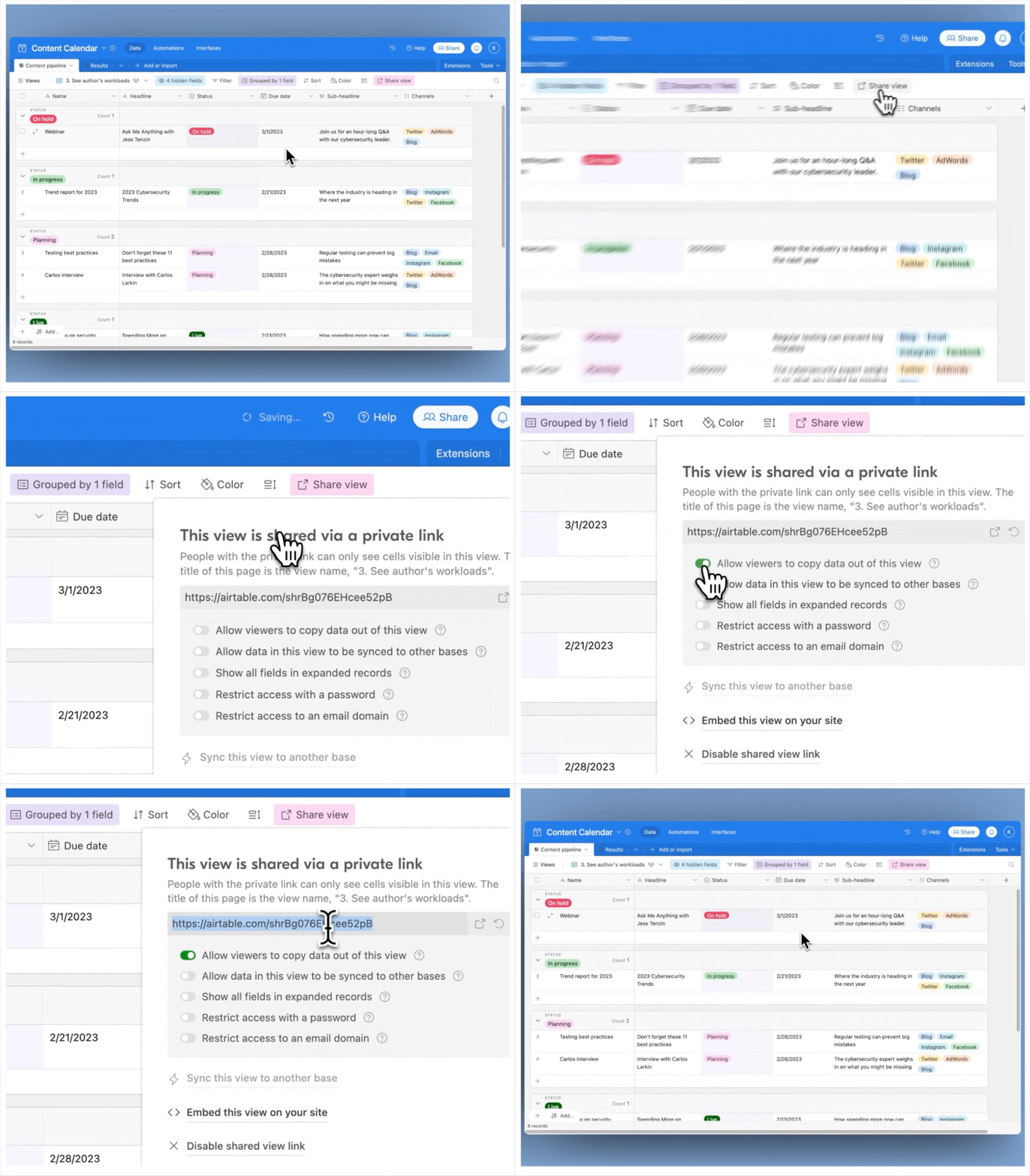
Capture what the CSV export won't carry over
Verify before you consider it done
A short count means a filtered view got exported instead of the full table. Re-export with filters cleared and check again.
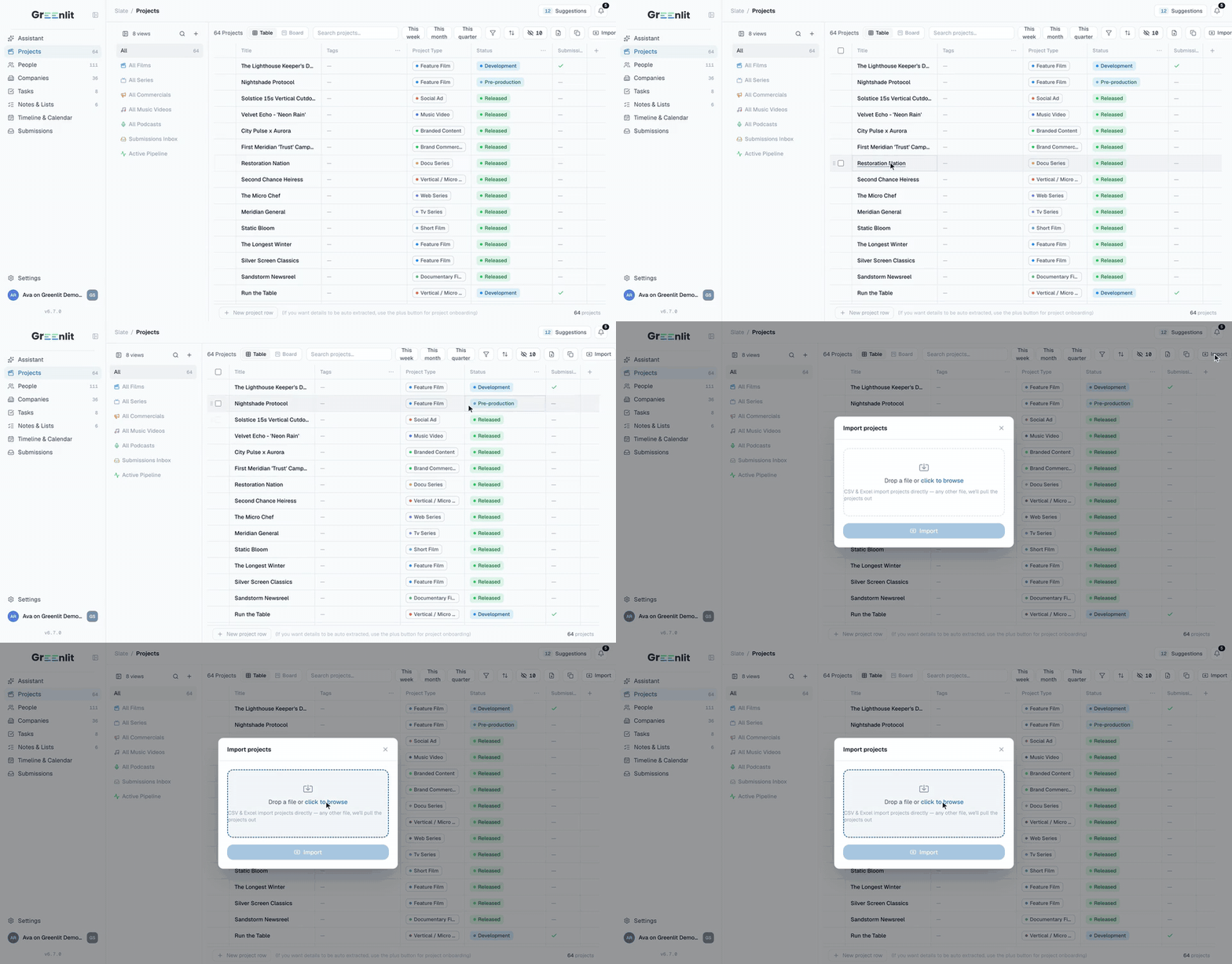
Land it in Greenlit
Do it yourself, or don't
You can follow the five steps above yourself and hope you caught every attachment, every linked record, and every automation before the ownership change finishes closing. That's a real option. None of this requires anything you don't already have access to.
Or send us the export and skip the "hope" part. We'll pull it apart, map it, and land it in your workspace already verified: every attachment accounted for, every field mapped to a real record, not a filename and a link that stopped working three months later.
Either way, what you land in is worth seeing before you decide. Development and sales teams on Greenlit aren't just getting a cleaner copy of the same base. Submissions route to the right reader and get logged automatically, buyer mandates get matched against your slate the moment material comes in, and the trade news that used to mean checking five sites every morning shows up already matched to what you're holding. None of that is something an export script, however careful, was ever going to give you. See what that looks like on the Greenlit platform, or go straight to the side-by-side with Airtable.
Related
See it against your own submissions
Bring a real base or spreadsheet into a working demo and watch it land.
Book a Demo